
Use Jamjams first if you want the shortest path
For most Windows users, Jamjams is the least fussy way to get started. It avoids most manual copy-and-paste work and is a better first stop if you only want the service running quickly.
Manual setup is still useful when you prefer V2RayN-Core, need to inspect each connection field yourself, or want separate V2Ray and Shadowsocks profiles in the same client.
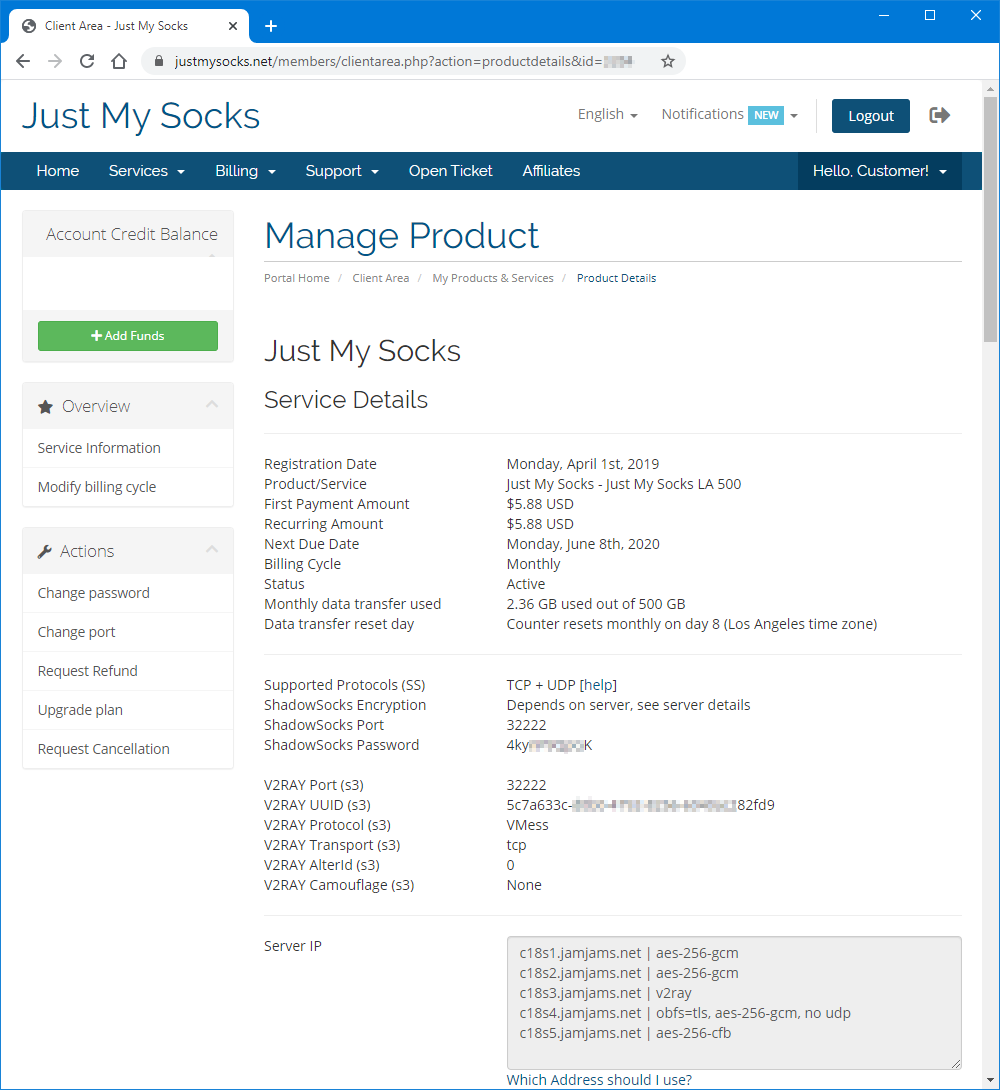
Collect the values from your service panel
Before opening a Windows client, sign in to your Just My Socks account and open one active service from the services list. Keep the service page visible while you configure the client.
You are looking for values such as server address, port, password, protocol type, encryption method, and any transport or TLS options attached to the selected service.
Install V2RayN-Core
Download V2RayN-Core from the provider’s Windows setup resources or your account panel, extract the archive, and start V2rayN.exe.
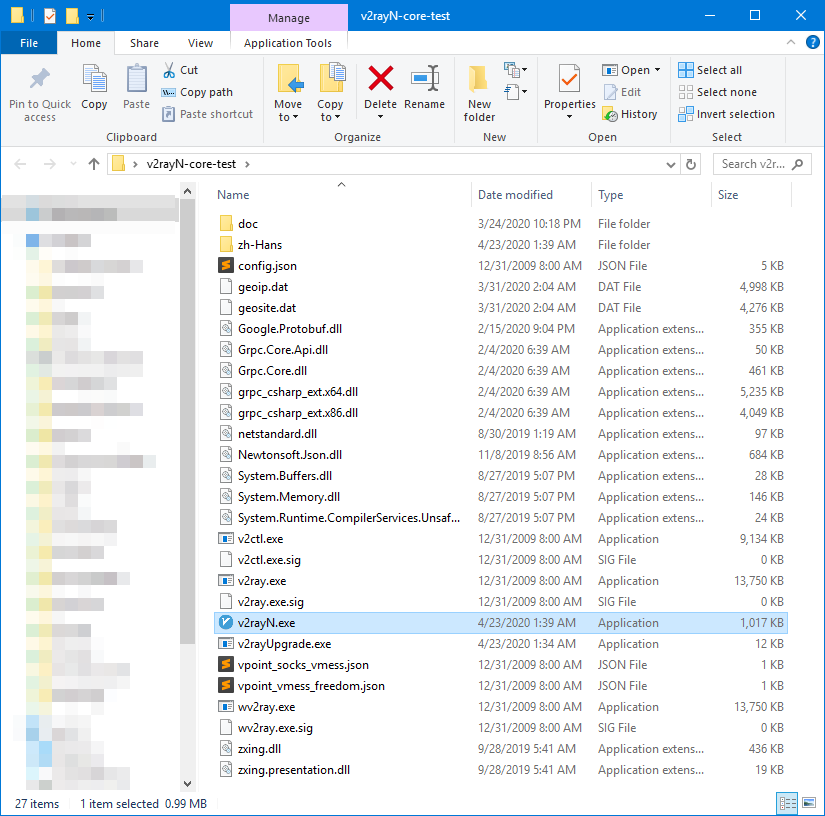
If the app exits immediately, update .NET Framework 4.8 and launch it again. That is a common first-run issue on older Windows installations.
Add a V2Ray profile
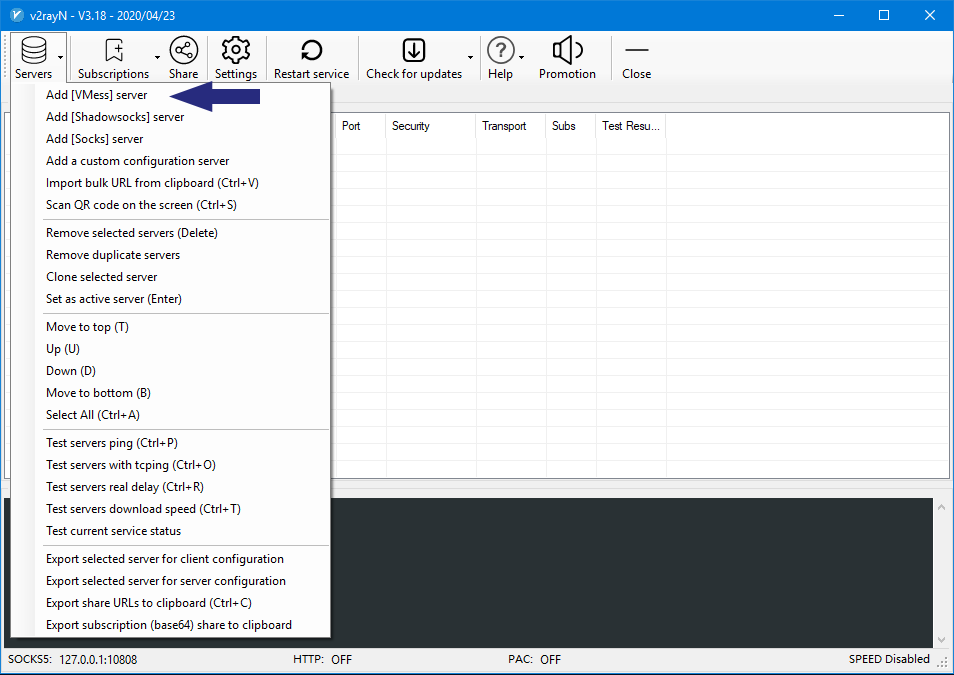
Open V2RayN from the system tray and add a VMess server. Fill the form with the V2Ray values from your Just My Socks service page.
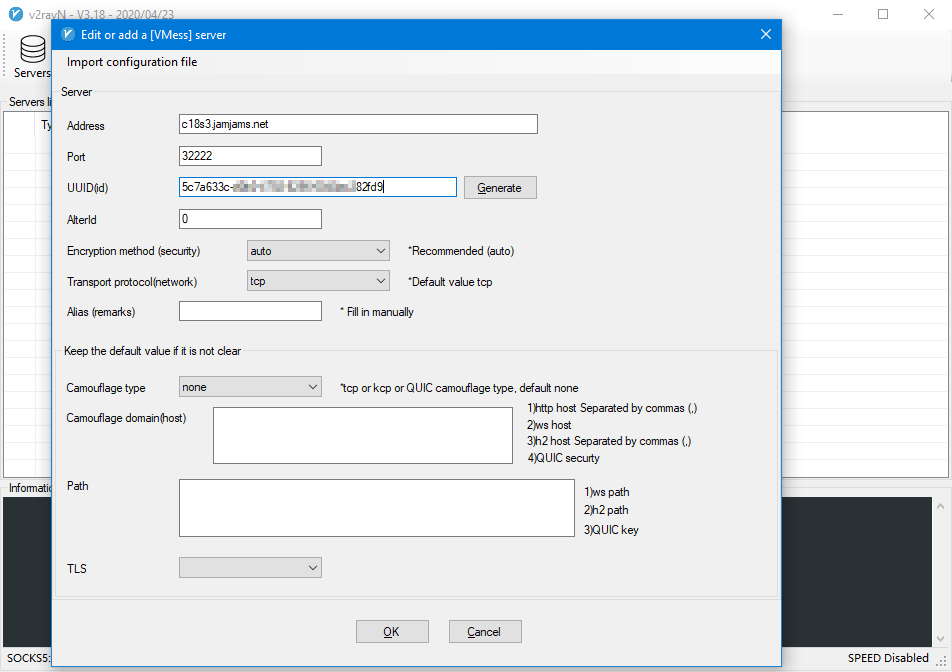
If the service page includes TCP, TLS, or other transport fields, match them carefully. Small differences in those values can prevent the profile from connecting.
Add a Shadowsocks profile
If you want to connect with Shadowsocks instead, add a Shadowsocks server in V2RayN and use the Shadowsocks values from the same service page.
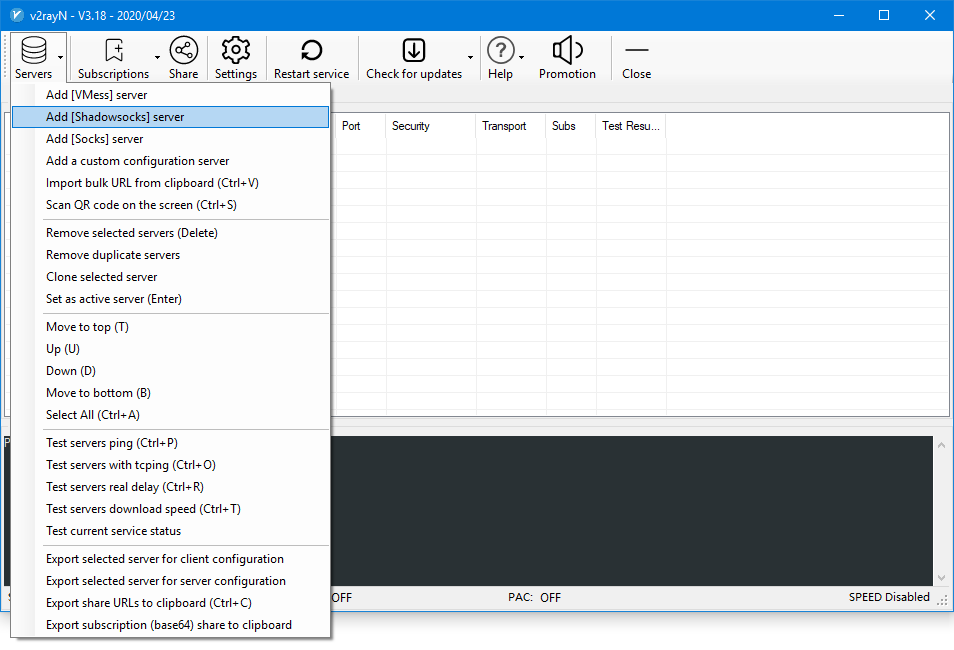
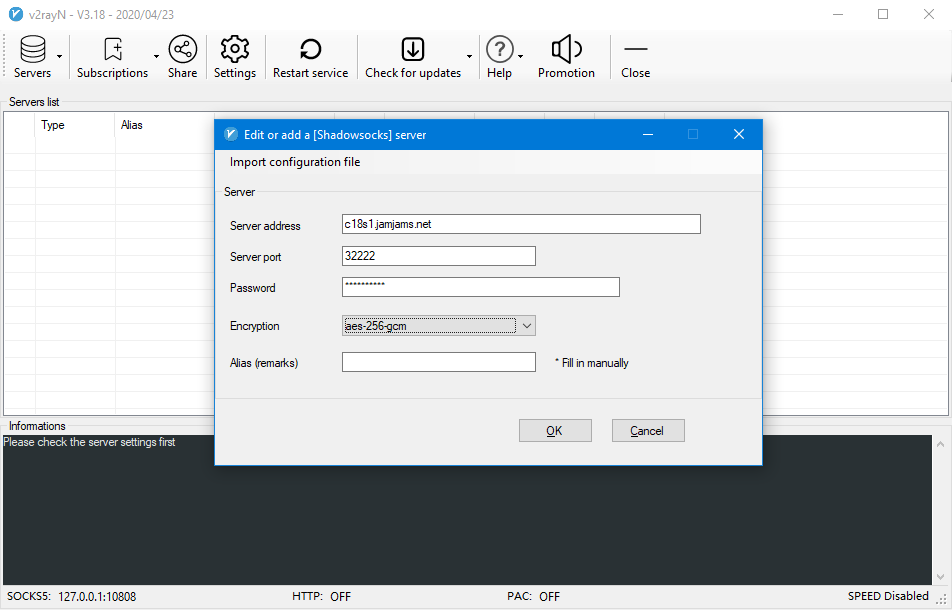
Double-check the server, port, password, and encryption method before saving. These fields need to match the account panel exactly.
Turn on the system proxy
After saving the profile, right-click the V2RayN tray icon, enable the HTTP proxy, and choose the system proxy mode that fits your use case.
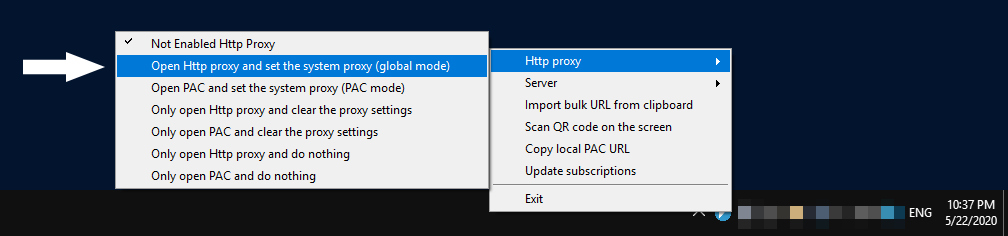
Finally, open a few websites and confirm that traffic is using the selected profile. If the connection fails, go back to the service panel and compare every field again before changing routes or plans.